Wise Payments for WooCommerce
Bank transfer payment gateway with automatic webhook confirmation
Wise Payments for WooCommerce adds Wise (formerly TransferWise) as a payment method at your WooCommerce checkout. Customers pay via Wise bank transfer and the plugin listens for the Wise webhook to automatically mark orders as paid — no manual reconciliation, no missed payments.
Who is this for?
Your customers want to pay in their local currency via Wise, and you want payments confirmed automatically without manual bank reconciliation.
You manage your business payments through Wise and want your WooCommerce orders to feed in and confirm automatically.
You build WooCommerce stores for clients who receive cross-border payments and need a clean, automated Wise integration.
Features
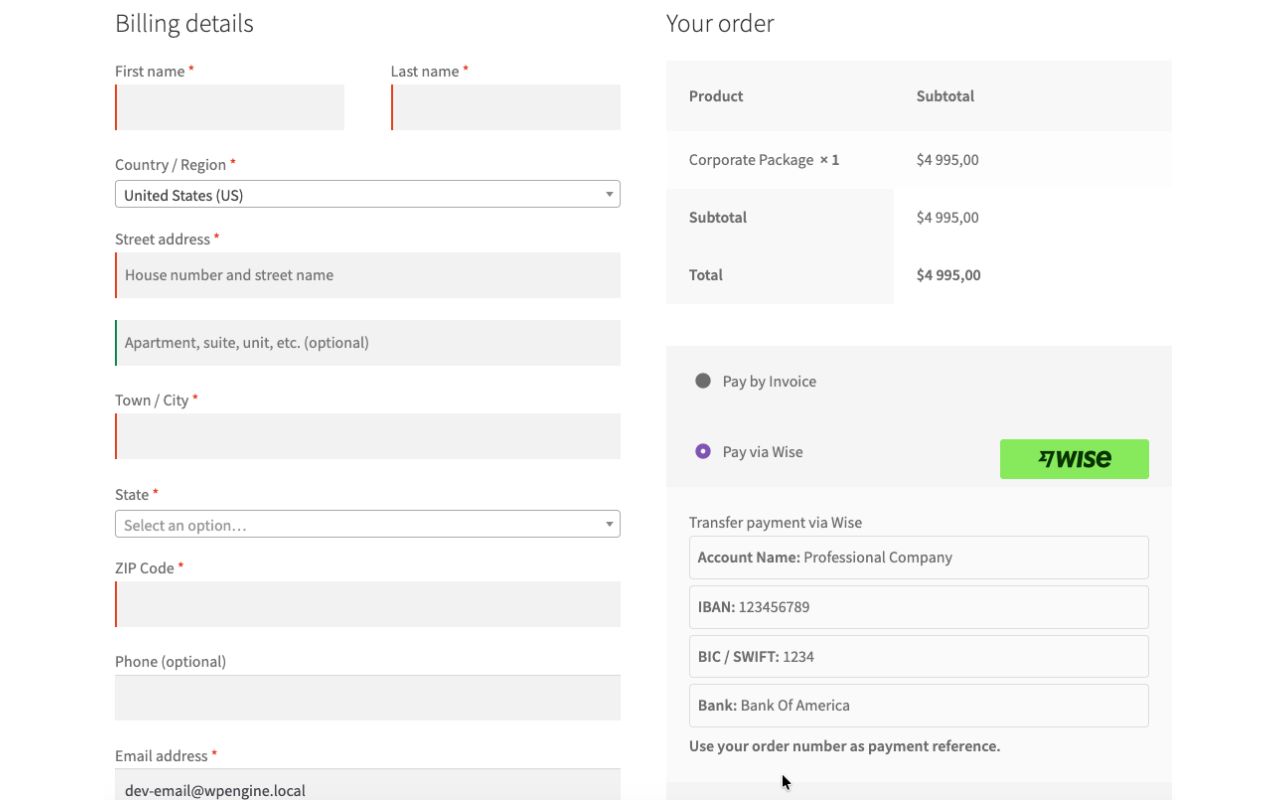
Adds Wise as a standard payment method at checkout. No iframe, no redirect — customers pay through Wise and return to your order confirmation.
When payment clears, Wise sends a webhook. The plugin verifies the signature and amount, then marks the WooCommerce order as Processing automatically.
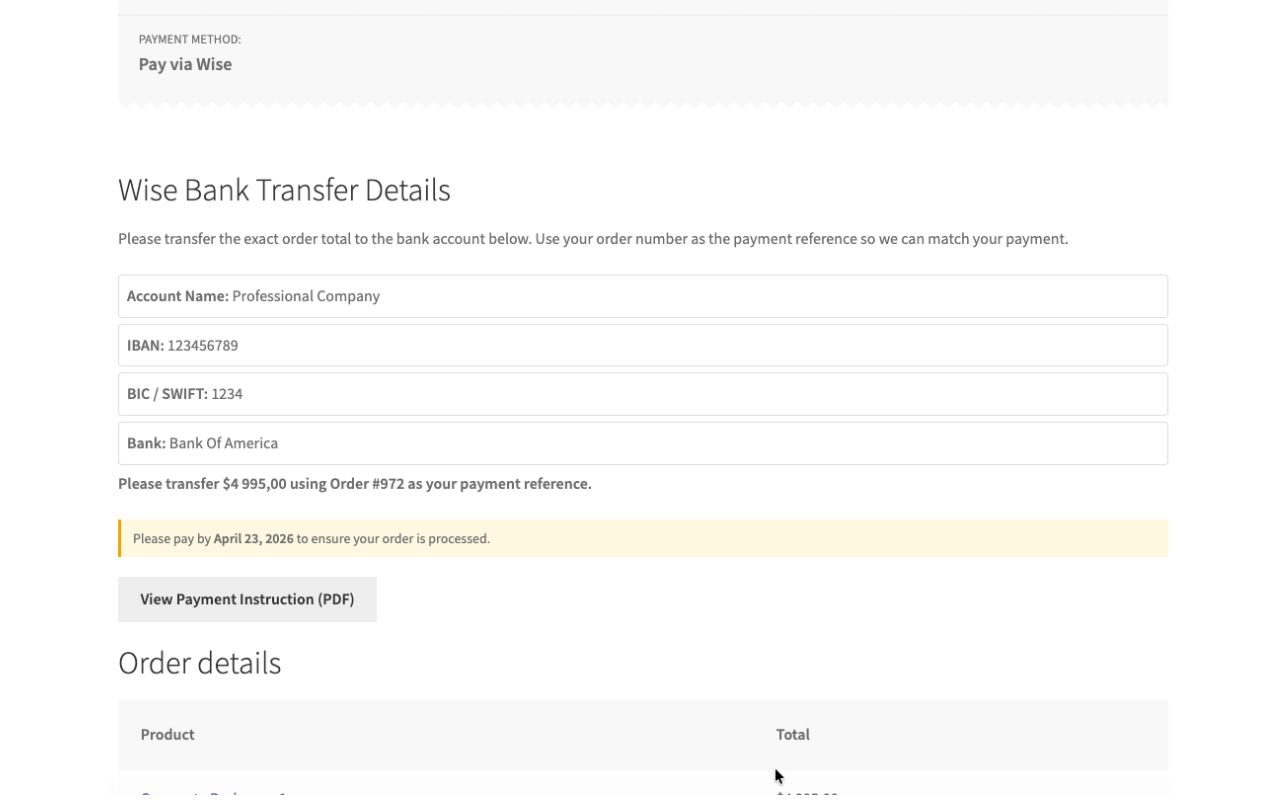
Your Wise account details are shown on the order received page and included in the confirmation email — account number, sort code, and payment reference.
Passes through all currencies enabled on your Wise Business account. EUR, GBP, USD, and any other supported currency are handled without extra configuration.
Each webhook event appends a timestamped note to the WooCommerce order — payment received, amount confirmed, and the Wise transaction reference.
Configurable order status flow: Pending to Processing on payment, then Processing to Completed on fulfilment. Fully compatible with WooCommerce order lifecycle.
Every incoming Wise webhook is verified against Wise's RSA public key before any order is updated. Spoofed or tampered requests are rejected silently.
All Wise webhook events are logged against the WooCommerce order for auditing, dispute resolution, and reconciliation with your Wise statement.
Installation
-
1
Download the plugin zip
After purchase, your license key and a download link are emailed to you instantly. You can also download from your account page at any time.
-
2
Upload via WordPress
In your WordPress admin go to Plugins → Add New Plugin → Upload Plugin. Choose the
pacificp-wise-payments.zipfile and click Install Now. -
3
Activate the plugin
Click Activate Plugin after upload, or activate it from the Plugins list.
-
4
Enter your license key
Open the plugin settings and paste your license key into the License Key field. Click Save — the key will be verified and your site activated automatically.
-
5
Configure the plugin
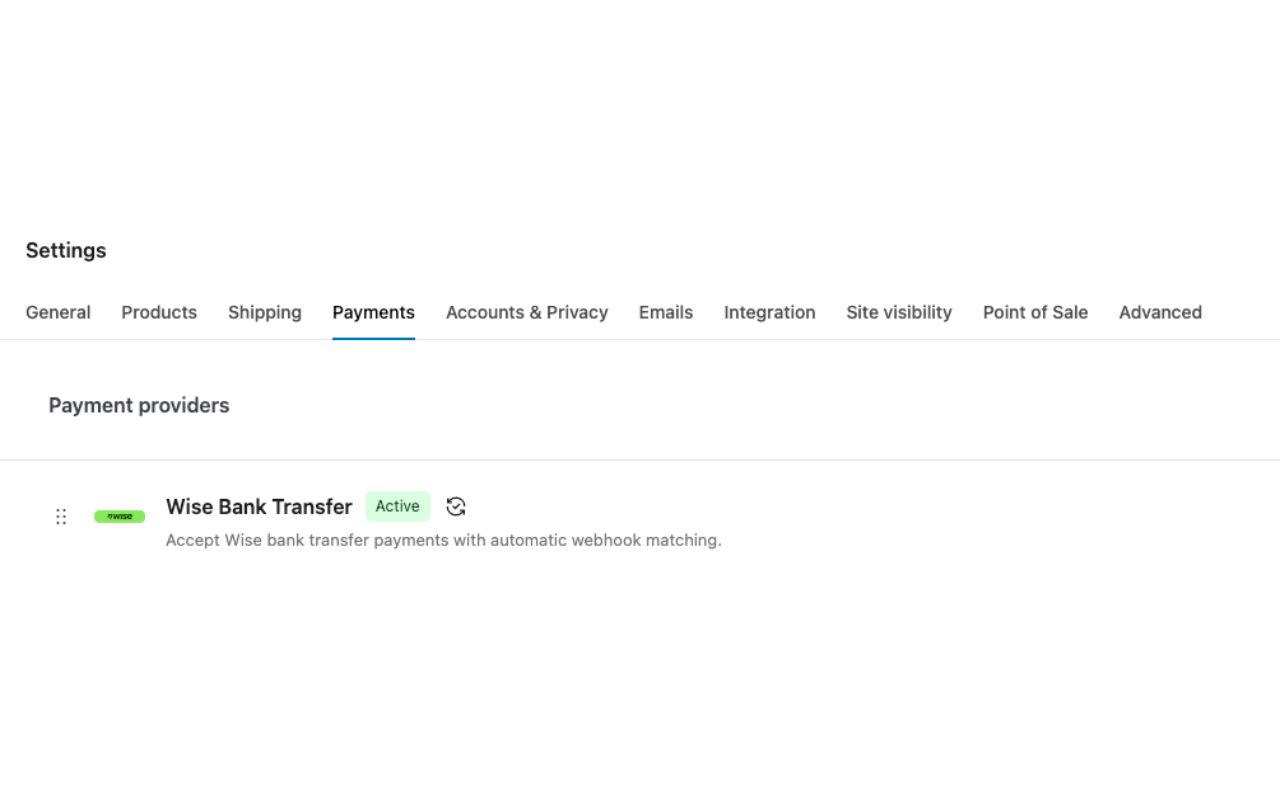
Go to WooCommerce → Settings → Payments → Wise to complete setup. See the Configuration section below for a full walkthrough.
Configuration
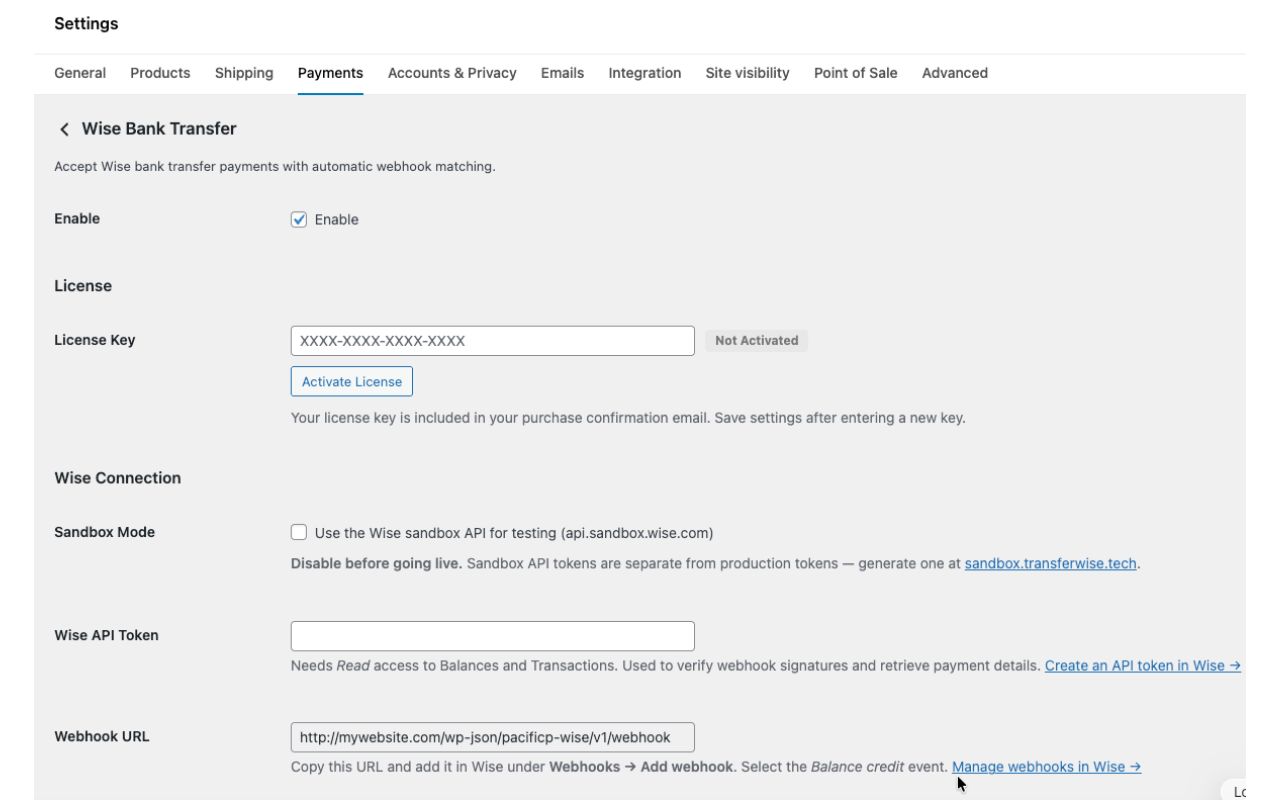
Wise Connection
| Setting | Default | Notes |
|---|---|---|
| Sandbox Mode | Off | Routes all API calls to api.sandbox.wise.com. Sandbox tokens are separate from production — generated at sandbox.transferwise.tech. Must be disabled before going live. |
| API Token | — | Requires Read access to Balances and Transactions. Also used for webhook signature verification. |
| Webhook URL | Auto-generated | Read-only. Copy this into Wise → Webhooks → Add webhook and select the Balance credit event. |
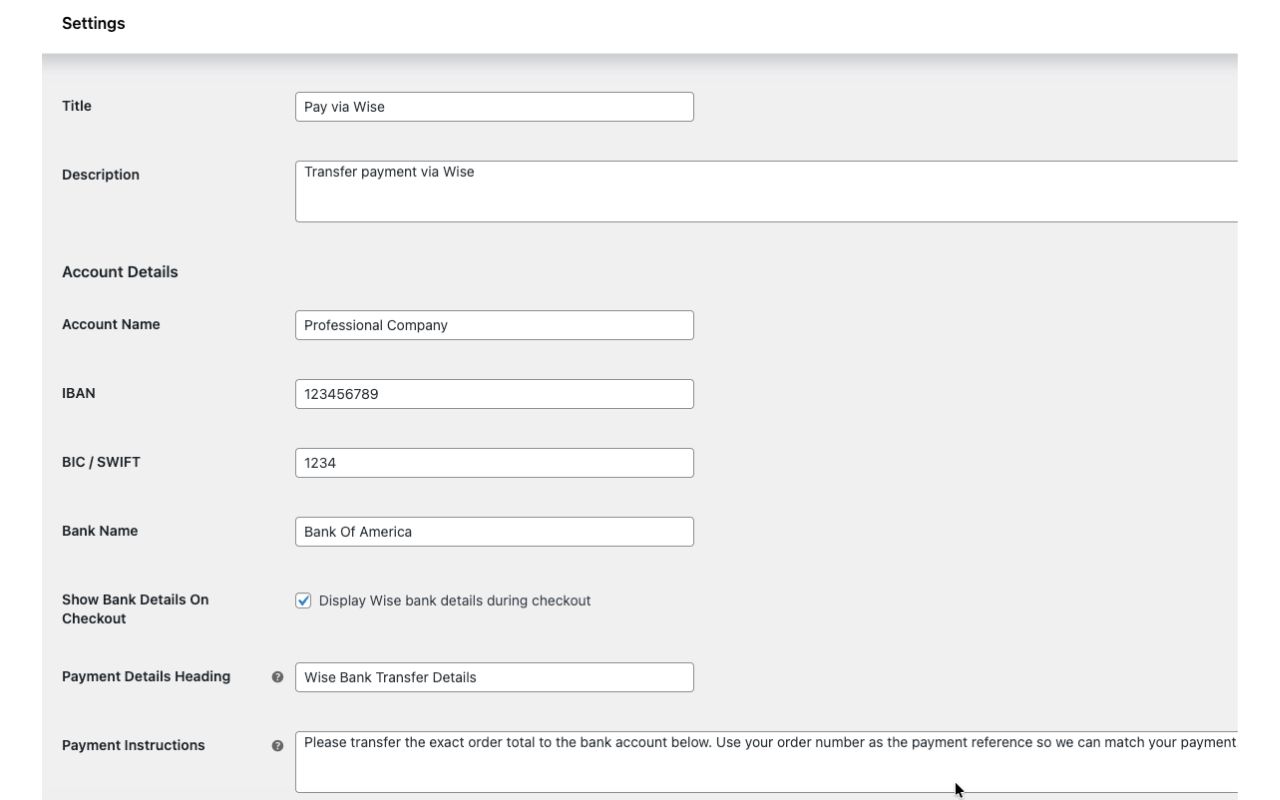
| Title | Pay via Wise | Shown to the customer at checkout. |
| Description | Transfer payment via Wise | Shown below the title at checkout. |
Account Details
These must match your Wise account for the currency your store is set to.
| Setting | Notes |
|---|---|
| Account Name | Your Wise account holder name. |
| IBAN | Your Wise IBAN. |
| BIC / SWIFT | Your Wise BIC. |
| Bank Name | Typically "Wise". |
| Show Bank Details On Checkout | If off, bank details are only shown on the order confirmation page, not during checkout. On by default. |
| Payment Details Heading | Heading shown above bank details on the confirmation page and in emails. Default: "Wise Bank Transfer Details". |
| Payment Instructions | Paragraph shown above the bank details. Default instructs the customer to use their order number as reference. |
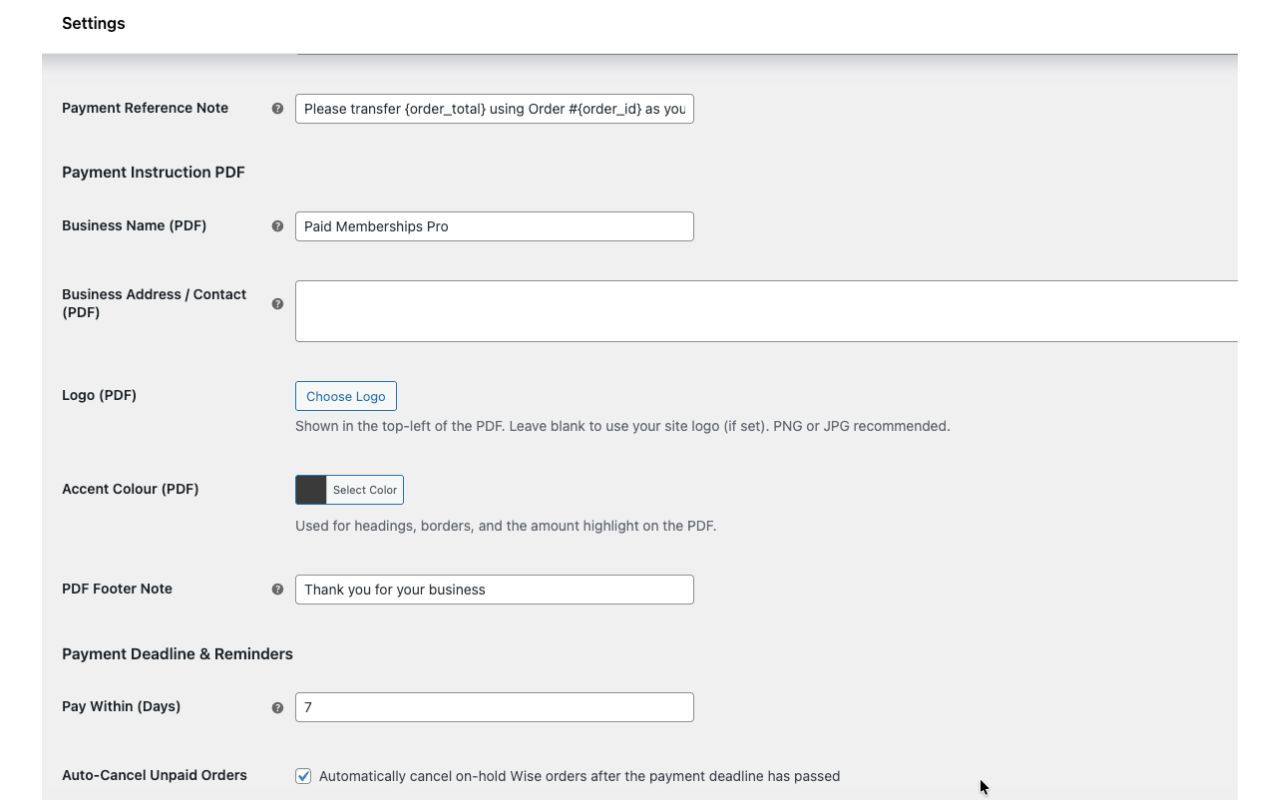
| Payment Reference Note | Line shown below the bank details. Supports {order_id} and {order_total} placeholders. |
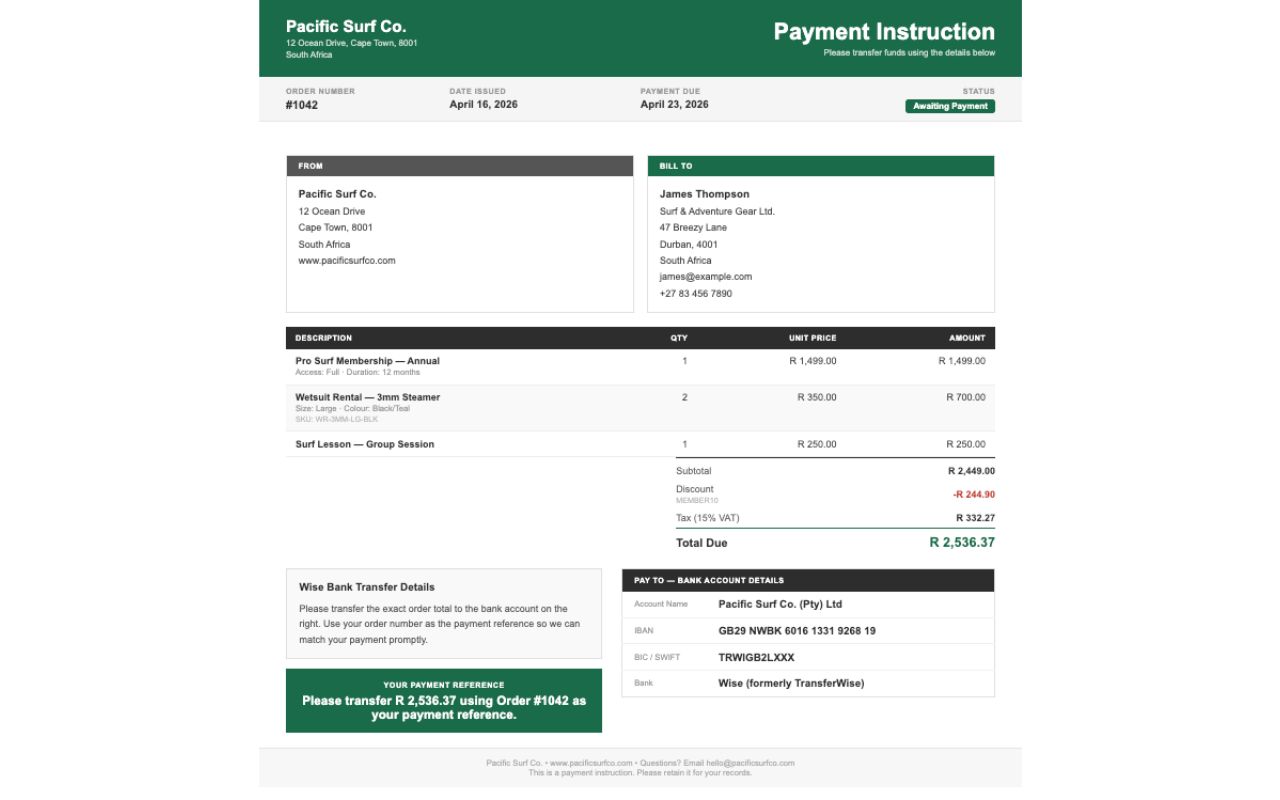
Payment Instruction PDF
| Setting | Default | Notes |
|---|---|---|
| Business Name | Site name | Shown in the "From" block on the PDF. |
| Business Address / Contact | — | Address, phone, or email. Each line displayed separately. |
| Logo | — | Appears top-left of the PDF. Falls back to the site logo if blank. PNG or JPG recommended. |
| Accent Colour | #3a3a3a | Used for headings, borders, and the total amount highlight on the PDF. |
| PDF Footer Note | — | Optional note at the bottom of the PDF, e.g. "Thank you for your business." |
Payment Deadline & Reminders
| Setting | Default | Notes |
|---|---|---|
| Pay Within (Days) | 7 | How long the customer has to pay. Shown on the confirmation page, My Account, and the PDF. Set to 0 to disable. |
| Auto-Cancel Unpaid Orders | On | Cancels on-hold Wise orders automatically once the payment deadline passes. |
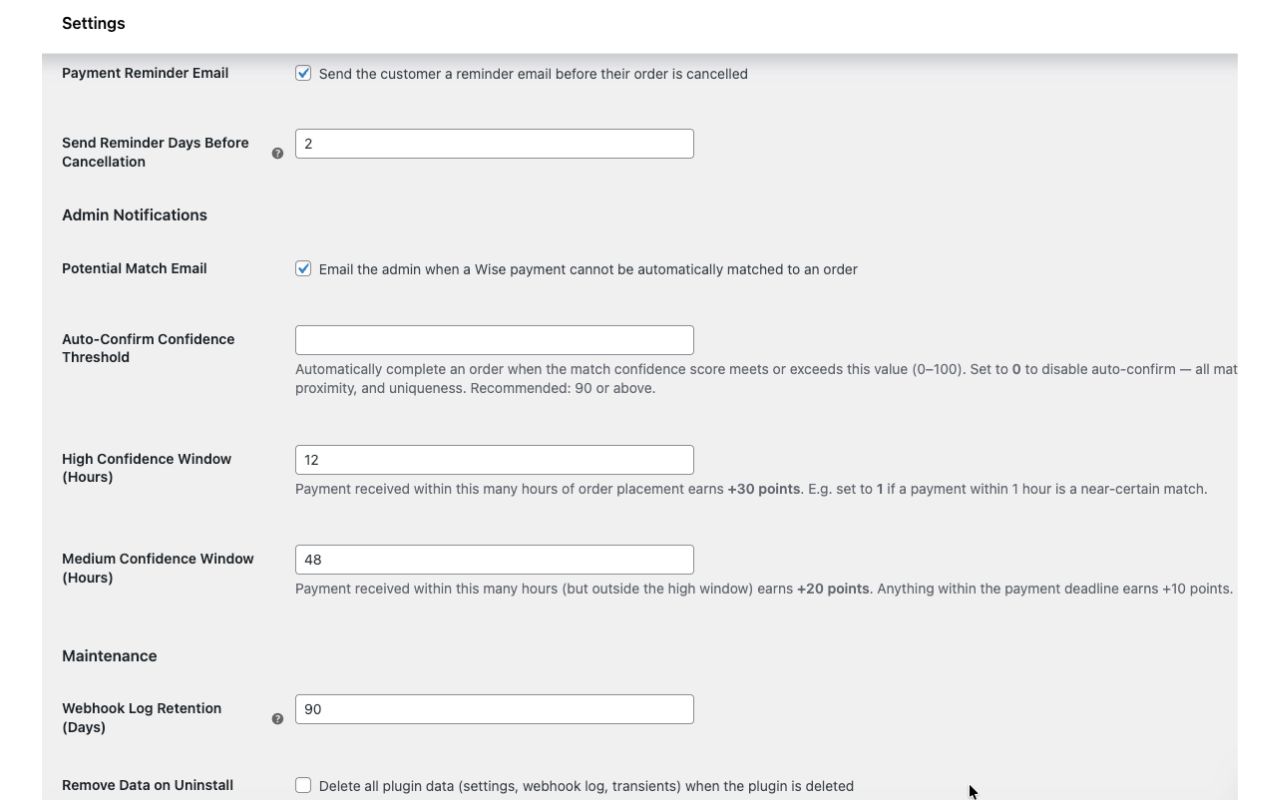
| Payment Reminder Email | On | Sends the customer a reminder email before their order is cancelled. |
| Send Reminder Days Before Cancellation | 2 | How many days before the deadline to send the reminder. E.g. a 7-day deadline with this set to 2 fires the reminder on day 5. |
Admin Notifications
| Setting | Default | Notes |
|---|---|---|
| Potential Match Email | On | Emails the admin when a payment arrives but cannot be automatically confirmed. |
| Auto-Confirm Confidence Threshold | 0 (disabled) | Orders are completed automatically when the match score meets or exceeds this value. Set to 0 to require manual review for all matches. Recommended value if enabling: 90 or above. |
| High Confidence Window (Hours) | 12 | Payment received within this many hours of order placement earns +30 match points. |
| Medium Confidence Window (Hours) | 48 | Payment received within this window (but outside the high window) earns +20 points. Anything within the payment deadline earns +10 points. |
Maintenance
| Setting | Default | Notes |
|---|---|---|
| Webhook Log Retention (Days) | 90 | Processed webhook records older than this are deleted automatically. Set to 0 to keep forever. |
| Remove Data on Uninstall | Off | Deletes all plugin data (settings, webhook log, transients) when the plugin is deleted. Leave off unless you want a clean removal. |
Usage Guide
How It Works
1. Customer receives bank details
When a customer selects Wise at checkout, your Wise account details are shown immediately on the order confirmation page and included in the order email. If Show Bank Details On Checkout is enabled, they also see the details before placing the order. A downloadable PDF with payment instructions is attached to the email.
2. Payment is received and scored
When Wise receives a payment into your account, it sends a webhook to your store. The plugin verifies the webhook signature, then scores the incoming payment against open orders based on:
- Amount — does the payment amount match the order total?
- Timing — payments within 12 hours of order placement score highest (+30 pts), within 48 hours score medium (+20 pts), within the payment deadline score lower (+10 pts)
- Other factors — currency, customer details, and order history where available
3. Auto-confirm or manual review
If the match score meets or exceeds your Auto-Confirm Confidence Threshold, the order is marked as Processing automatically. If the score falls below the threshold (or the threshold is set to 0), the payment is flagged for manual review and you receive a Potential Match email notification.
4. Manual matching
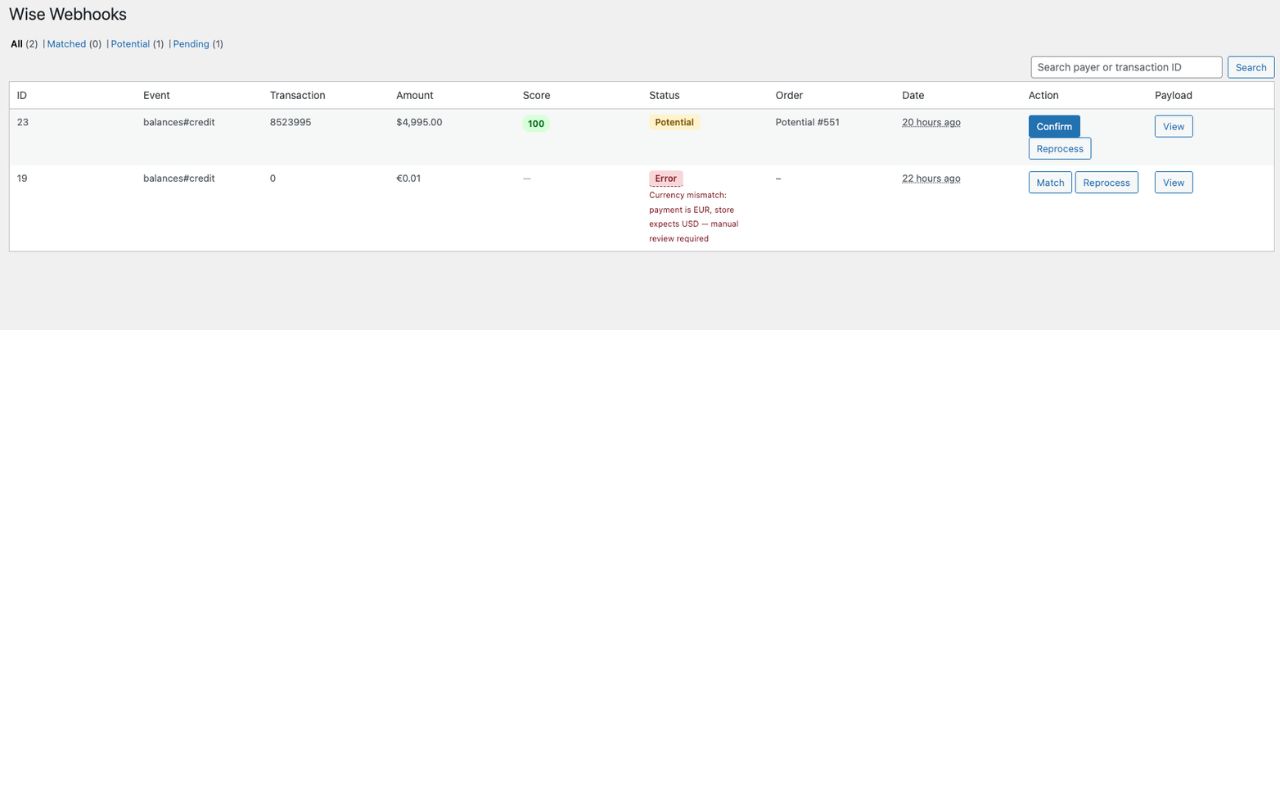
Go to WooCommerce → Wise Webhooks to see all incoming payments. Each row shows the amount, score, and suggested order. Click Match to Order to confirm the payment and update the order status.
Limitations
Wise does not include the payment reference in webhook payloads — this is an API limitation on Wise's side. The plugin matches payments to orders using amount, timing, and other signals rather than a reference string.
Screenshots
Pricing
14-day money-back guarantee.
Also from Pacific Plugins
Real-time WooCommerce inventory sync across multiple stores
- Real-time stock sync
- Bi-directional or one-way sync
- Sync on any stock event
Plugin details
- Version
- v1.0.0
- WordPress
- 5.8+
- PHP
- 7.4+